<?xml version="1.0" encoding="utf-8"?><feed xmlns="http://www.w3.org/2005/Atom" ><generator uri="https://jekyllrb.com/" version="3.10.0">Jekyll</generator><link href="https://greystoke1337.github.io/blog/feed.xml" rel="self" type="application/atom+xml" /><link href="https://greystoke1337.github.io/blog/" rel="alternate" type="text/html" /><updated>2026-03-30T00:46:57+00:00</updated><id>https://greystoke1337.github.io/blog/feed.xml</id><title type="html">Max’s Projects</title><subtitle>Builds and things I&apos;ve learned along the way.</subtitle><author><name>Max</name></author><entry><title type="html">Foxtrot: Building a 4.3-Inch Flight Tracker Display</title><link href="https://greystoke1337.github.io/blog/2026/03/19/foxtrot.html" rel="alternate" type="text/html" title="Foxtrot: Building a 4.3-Inch Flight Tracker Display" /><published>2026-03-19T00:00:00+00:00</published><updated>2026-03-19T00:00:00+00:00</updated><id>https://greystoke1337.github.io/blog/2026/03/19/foxtrot</id><content type="html" xml:base="https://greystoke1337.github.io/blog/2026/03/19/foxtrot.html"><![CDATA[<p>After building the <a href="/blog/2026/03/10/overhead-tracker.html">Overhead Tracker</a> with a 4” Freenove display (codenamed Echo), I wanted a bigger screen. The Waveshare ESP32-S3-Touch-LCD-4.3B looked perfect — 800x480 IPS, capacitive touch, ESP32-S3 with 8 MB of PSRAM. What I didn’t expect was how many hardware surprises were hiding in this board.</p>

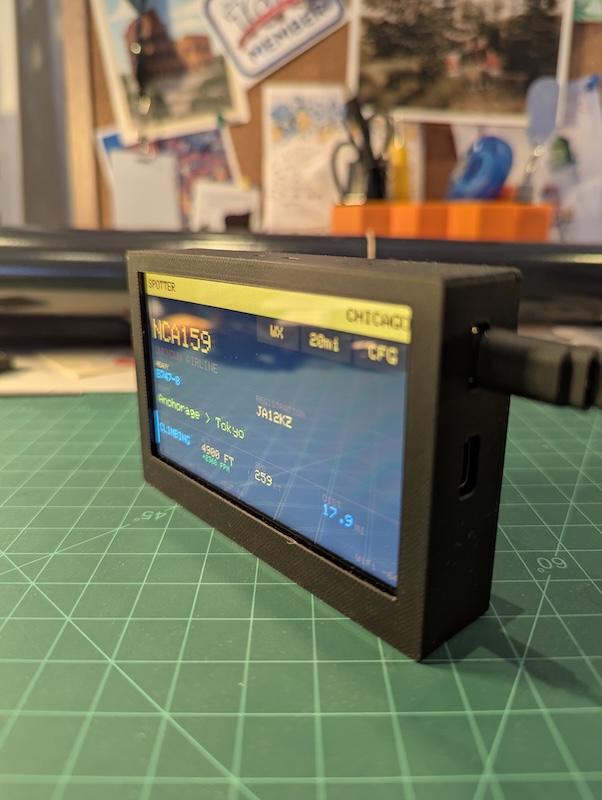
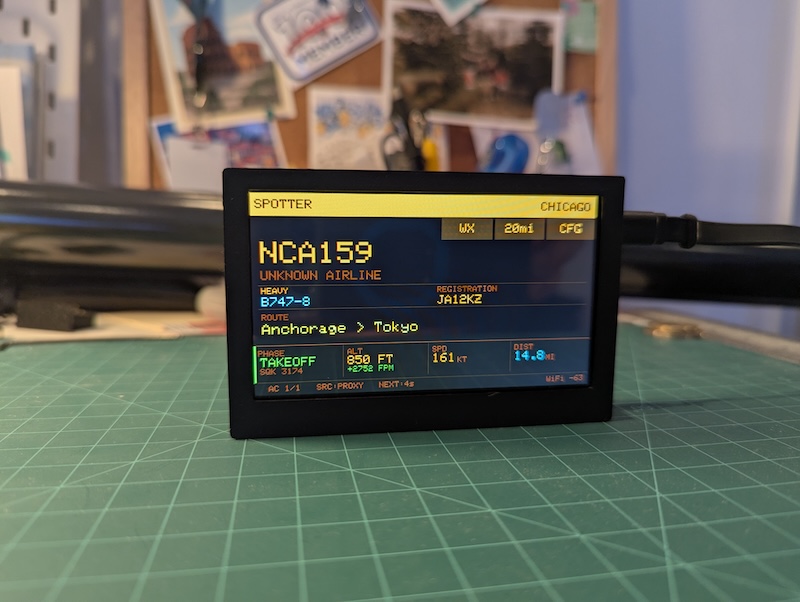
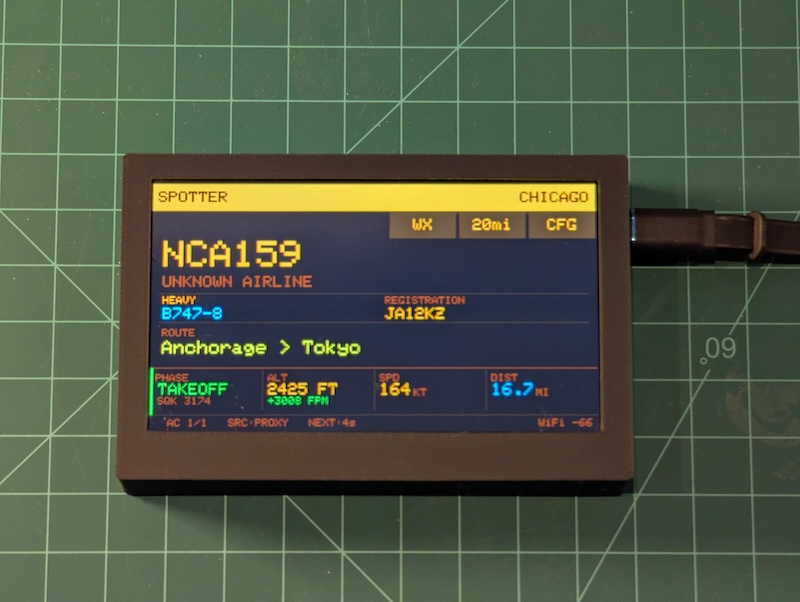
<p><img src="/blog/assets/images/PXL_20260329_075437792.jpg" alt="Foxtrot displaying NCA159, a B747-8 freighter taking off from Anchorage en route to Tokyo, at 2,425 ft and climbing" loading="lazy" /></p>

<h2 id="the-hardware">The hardware</h2>

<p>The Waveshare 4.3B is a different class of device from the Freenove. Echo uses a simple SPI bus to push pixels — slow but straightforward. Foxtrot drives its display over a 16-bit RGB parallel bus with DMA, meaning the ESP32-S3 continuously streams pixel data to the LCD controller at high speed. This gives you smooth, tear-free rendering, but it also means 16 GPIO pins are permanently dedicated to the display bus and can never be reused for anything else.</p>

<p>Key specs:</p>

<ul>
  <li><strong>SoC:</strong> ESP32-S3-WROOM-1-N16R8 (16 MB flash, 8 MB PSRAM)</li>
  <li><strong>Display:</strong> 4.3” IPS, 800x480, ST7262 RGB parallel interface</li>
  <li><strong>Touch:</strong> GT911 capacitive (I2C, factory-calibrated)</li>
  <li><strong>I/O expander:</strong> CH422G (I2C, for SD card and LCD control)</li>
  <li><strong>Storage:</strong> MicroSD via CH422G EXIO4</li>
</ul>

<p>The capacitive touch is a big upgrade over Echo’s resistive panel. No calibration, no pressure required, and the GT911 reports accurate coordinates out of the box.</p>

<p><img src="/blog/assets/images/PXL_20260329_075552747.jpg" alt="Side view of the Foxtrot unit in its 3D-printed enclosure" loading="lazy" /></p>

<h2 id="the-blue-tint-bug">The blue tint bug</h2>

<p>The first thing I saw after flashing a basic sketch with SD card support was a strong blue-purple tint over the entire display. The image was still visible underneath, but every colour was shifted heavily toward blue.</p>

<p>The culprit: GPIO 10. Many SD card examples — including some from Waveshare themselves — use GPIO 10 as the SD chip select pin. On this board, GPIO 10 is the most significant bit of the blue channel (B7) on the RGB parallel bus. When <code class="language-plaintext highlighter-rouge">SD.begin(10)</code> reconfigures that pin as a SPI chip select, the display loses control of B7, and the LCD controller reads garbage on that pin during every pixel clock cycle. The result is a permanent blue tint.</p>

<p>The RGB565 blue channel uses five GPIOs:</p>

<table>
  <thead>
    <tr>
      <th>Signal</th>
      <th>GPIO</th>
      <th>Bit weight</th>
    </tr>
  </thead>
  <tbody>
    <tr>
      <td>B3 (LSB)</td>
      <td>14</td>
      <td>1</td>
    </tr>
    <tr>
      <td>B4</td>
      <td>38</td>
      <td>2</td>
    </tr>
    <tr>
      <td>B5</td>
      <td>18</td>
      <td>4</td>
    </tr>
    <tr>
      <td>B6</td>
      <td>17</td>
      <td>8</td>
    </tr>
    <tr>
      <td><strong>B7 (MSB)</strong></td>
      <td><strong>10</strong></td>
      <td><strong>16</strong></td>
    </tr>
  </tbody>
</table>

<p>Losing the MSB means every blue value jumps by ±16 out of 31, which is a massive colour shift.</p>

<h3 id="the-fix-ch422g-io-expander">The fix: CH422G I/O expander</h3>

<p>The SD card’s chip select on this board isn’t wired to any ESP32 GPIO directly. It’s routed through the CH422G, an I2C-based I/O expander, on pin EXIO4. The correct approach is to assert chip select through the expander and give the Arduino SD library a harmless dummy GPIO:</p>

<div class="language-cpp highlighter-rouge"><div class="highlight"><pre class="highlight"><code><span class="n">ch422gInit</span><span class="p">();</span>                          <span class="c1">// init I2C expander</span>
<span class="n">ch422gSetPin</span><span class="p">(</span><span class="n">EXIO_SD_CS</span><span class="p">,</span> <span class="nb">false</span><span class="p">);</span>       <span class="c1">// assert SD CS via expander (active low)</span>
<span class="n">SPI</span><span class="p">.</span><span class="n">begin</span><span class="p">(</span><span class="mi">12</span><span class="p">,</span> <span class="mi">13</span><span class="p">,</span> <span class="mi">11</span><span class="p">);</span>                 <span class="c1">// SCK, MISO, MOSI — no CS pin</span>
<span class="n">SD</span><span class="p">.</span><span class="n">begin</span><span class="p">(</span><span class="mi">6</span><span class="p">,</span> <span class="n">SPI</span><span class="p">);</span>                      <span class="c1">// GPIO 6 (unused CAN TX) as dummy CS</span>
</code></pre></div></div>

<p>GPIO 10 never gets touched, and the display stays clean. This took a while to figure out — the Waveshare documentation doesn’t mention the conflict, and most forum posts just suggest “try a different CS pin” without explaining why.</p>

<h2 id="touch-initialisation">Touch initialisation</h2>

<p>The GT911 touch controller also goes through the CH422G — its reset line is on EXIO0. If you don’t explicitly reset the GT911 before initialising LovyanGFX, touch doesn’t work. The display renders fine, but touch events never fire.</p>

<div class="language-cpp highlighter-rouge"><div class="highlight"><pre class="highlight"><code><span class="n">ch422gSetPin</span><span class="p">(</span><span class="n">EXIO_TOUCH_RST</span><span class="p">,</span> <span class="nb">false</span><span class="p">);</span>  <span class="c1">// hold reset low</span>
<span class="n">delay</span><span class="p">(</span><span class="mi">10</span><span class="p">);</span>
<span class="n">ch422gSetPin</span><span class="p">(</span><span class="n">EXIO_TOUCH_RST</span><span class="p">,</span> <span class="nb">true</span><span class="p">);</span>   <span class="c1">// release</span>
<span class="n">delay</span><span class="p">(</span><span class="mi">50</span><span class="p">);</span>                             <span class="c1">// GT911 needs time to boot</span>
</code></pre></div></div>

<p>This has to happen before <code class="language-plaintext highlighter-rouge">tft.init()</code>, not after. The GT911 latches its I2C address during the reset sequence, and if LovyanGFX tries to probe it before it’s ready, it ends up at the wrong address.</p>

<h2 id="no-lvgl">No LVGL</h2>

<p>My first attempt used LVGL (v8) for the UI — widgets, styles, event handlers, the whole retained-mode stack. It crashed on boot. The problem was an I2C driver conflict: LVGL’s ESP-IDF touch driver and the CH422G expander both tried to own the I2C bus, and the arbitration failure caused a hard fault before the first frame rendered.</p>

<p>I tried several workarounds — shared I2C bus handles, mutex-guarded access, deferred init — but LVGL’s driver model assumes exclusive ownership of the peripherals it manages. The fix was to rip out LVGL entirely and go immediate-mode with LovyanGFX.</p>

<p>The stub files (<code class="language-plaintext highlighter-rouge">lvgl_v8_port.cpp</code> and <code class="language-plaintext highlighter-rouge">lvgl_v8_port.h</code>) are still in the repo but contain only a comment: do not restore. If anyone hits the same issue, that’s why.</p>

<h2 id="immediate-mode-rendering-with-lovyangfx">Immediate-mode rendering with LovyanGFX</h2>

<p>Without LVGL, all drawing is direct <code class="language-plaintext highlighter-rouge">fillRect</code>, <code class="language-plaintext highlighter-rouge">drawString</code>, and <code class="language-plaintext highlighter-rouge">drawLine</code> calls against the LovyanGFX display object. There are no widgets, no layout engine, no event loop. Every render function clears its region and redraws from scratch.</p>

<p>The display layout is four horizontal bands:</p>

<div class="language-plaintext highlighter-rouge"><div class="highlight"><pre class="highlight"><code>800×480
├── Header (52px)     Amber bar with location name and status
├── Nav bar (56px)    Three touch buttons: WX, GEO, CFG
├── Content (292px)   Flight card + dashboard (or weather, or message)
└── Footer (32px)     Status bar with fetch timing and flight count
</code></pre></div></div>

<p>Each screen mode — FLIGHT, WEATHER, MESSAGE — has its own render function that fills the content area. The nav bar and header are drawn once at boot and only redrawn when state changes. The footer updates after every fetch.</p>

<p>Helper functions keep the rendering code clean:</p>

<div class="language-cpp highlighter-rouge"><div class="highlight"><pre class="highlight"><code><span class="kt">void</span> <span class="nf">dlbl</span><span class="p">(</span><span class="kt">int</span> <span class="n">x</span><span class="p">,</span> <span class="kt">int</span> <span class="n">y</span><span class="p">,</span> <span class="k">const</span> <span class="kt">char</span><span class="o">*</span> <span class="n">text</span><span class="p">,</span> <span class="kt">uint16_t</span> <span class="n">color</span><span class="p">,</span> <span class="kt">int</span> <span class="n">size</span><span class="p">);</span>    <span class="c1">// left-align</span>
<span class="kt">void</span> <span class="nf">dlbl_r</span><span class="p">(</span><span class="kt">int</span> <span class="n">x</span><span class="p">,</span> <span class="kt">int</span> <span class="n">y</span><span class="p">,</span> <span class="k">const</span> <span class="kt">char</span><span class="o">*</span> <span class="n">text</span><span class="p">,</span> <span class="kt">uint16_t</span> <span class="n">color</span><span class="p">,</span> <span class="kt">int</span> <span class="n">size</span><span class="p">);</span>  <span class="c1">// right-align</span>
<span class="kt">void</span> <span class="nf">drawBtn</span><span class="p">(</span><span class="kt">int</span> <span class="n">x</span><span class="p">,</span> <span class="kt">int</span> <span class="n">y</span><span class="p">,</span> <span class="kt">int</span> <span class="n">w</span><span class="p">,</span> <span class="kt">int</span> <span class="n">h</span><span class="p">,</span> <span class="k">const</span> <span class="kt">char</span><span class="o">*</span> <span class="n">label</span><span class="p">,</span> <span class="kt">bool</span> <span class="n">active</span><span class="p">);</span>
</code></pre></div></div>

<h2 id="clip-based-anti-tear-rendering">Clip-based anti-tear rendering</h2>

<p>The first version cleared the entire content area with a single <code class="language-plaintext highlighter-rouge">fillRect(0, CONTENT_Y, 800, 292)</code> before redrawing. On an SPI display like Echo, this is fine — the frame buffer is in local RAM and the SPI transfer happens after drawing is complete. On Foxtrot’s RGB parallel bus, the DMA controller is continuously scanning the frame buffer to the display. A single large fill creates a visible black flash as the DMA reads cleared pixels before the new content is drawn.</p>

<p>The initial fix was strip-by-strip clearing — redrawing in narrow horizontal bands. But the real solution turned out to be clip-based atomic rendering. Each cell uses <code class="language-plaintext highlighter-rouge">setClipRect</code> to constrain drawing to a bounding box, fills and draws within it, then clears the clip. Because the fill and draw happen within the same clipped region, the DMA never catches a fully-cleared state:</p>

<div class="language-cpp highlighter-rouge"><div class="highlight"><pre class="highlight"><code><span class="c1">// Clip-based atomic fill+draw (left-aligned)</span>
<span class="k">static</span> <span class="kt">void</span> <span class="nf">dlbl_fill</span><span class="p">(</span><span class="kt">int</span> <span class="n">x</span><span class="p">,</span> <span class="kt">int</span> <span class="n">y</span><span class="p">,</span> <span class="kt">int</span> <span class="n">w</span><span class="p">,</span> <span class="kt">int</span> <span class="n">h</span><span class="p">,</span> <span class="kt">float</span> <span class="n">sz</span><span class="p">,</span> <span class="kt">uint16_t</span> <span class="n">col</span><span class="p">,</span> <span class="kt">uint16_t</span> <span class="n">bg</span><span class="p">,</span> <span class="k">const</span> <span class="kt">char</span><span class="o">*</span> <span class="n">txt</span><span class="p">)</span> <span class="p">{</span>
  <span class="n">tft</span><span class="p">.</span><span class="n">setClipRect</span><span class="p">(</span><span class="n">x</span><span class="p">,</span> <span class="n">y</span><span class="p">,</span> <span class="n">w</span><span class="p">,</span> <span class="n">h</span><span class="p">);</span>
  <span class="n">tft</span><span class="p">.</span><span class="n">fillRect</span><span class="p">(</span><span class="n">x</span><span class="p">,</span> <span class="n">y</span><span class="p">,</span> <span class="n">w</span><span class="p">,</span> <span class="n">h</span><span class="p">,</span> <span class="n">bg</span><span class="p">);</span>
  <span class="n">tft</span><span class="p">.</span><span class="n">drawString</span><span class="p">(</span><span class="n">txt</span><span class="p">,</span> <span class="n">x</span><span class="p">,</span> <span class="n">y</span><span class="p">);</span>
  <span class="n">tft</span><span class="p">.</span><span class="n">clearClipRect</span><span class="p">();</span>
<span class="p">}</span>
</code></pre></div></div>

<p>Every text cell on the dashboard — callsign, altitude, speed, distance — uses this pattern. The clip rect also handles text truncation naturally: if a long airline name or route string overflows its allocated space, it gets clipped at the boundary instead of bleeding into adjacent cells.</p>

<h2 id="full-redraw-rendering">Full-redraw rendering</h2>

<p>Early versions tried dead-reckoning animation between fetches — interpolating altitude from vertical speed and distance from ground speed every 100ms. It looked clever on paper, but in practice the predicted values would drift noticeably before snapping back to ground truth on the next fetch, especially during turns or phase changes. The dead reckoning code was removed in favour of a simpler approach: the firmware does a full redraw each time the display cycles to a new flight (every 8 seconds) or when fresh data arrives (every 15 seconds). Combined with the clip-based atomic rendering, the display updates cleanly without any visible flicker, and the values shown are always real data rather than predictions.</p>

<h2 id="the-flight-dashboard">The flight dashboard</h2>

<p>The content area in flight mode shows a two-row layout: the flight identity at the top (callsign, airline, aircraft type, route) and a four-column dashboard below:</p>

<table>
  <thead>
    <tr>
      <th>PHASE</th>
      <th>ALT / V-RATE</th>
      <th>SPEED</th>
      <th>DIST</th>
    </tr>
  </thead>
  <tbody>
    <tr>
      <td>CLIMBING</td>
      <td>12,450 ft ↑ +1,200 fpm</td>
      <td>287 kt</td>
      <td>4.2 mi</td>
    </tr>
  </tbody>
</table>

<p>All units are imperial: distances in miles, temperatures in Fahrenheit, precipitation in inches, wind speed in MPH. The weather screen gained a precipitation field with colour-coded severity (green for dry, yellow for light rain, amber for moderate, red for heavy).</p>

<p>Each phase gets a distinct colour — green for takeoff, cyan for climbing, amber for cruising, orange for descending, gold for approach, red for landing, yellow for directly overhead. Emergency squawk codes (7700/7600/7500) override everything with a flashing red MAYDAY, NORDO, or HIJACK banner.</p>

<p>The firmware cycles through overhead flights every 8 seconds and refreshes data every 15 seconds. Three geofence presets (5 / 10 / 20 mi) are selectable via the GEO touch button. The callsign now renders in a larger font for readability from across the room, and the clock on the weather screen uses an even larger size.</p>

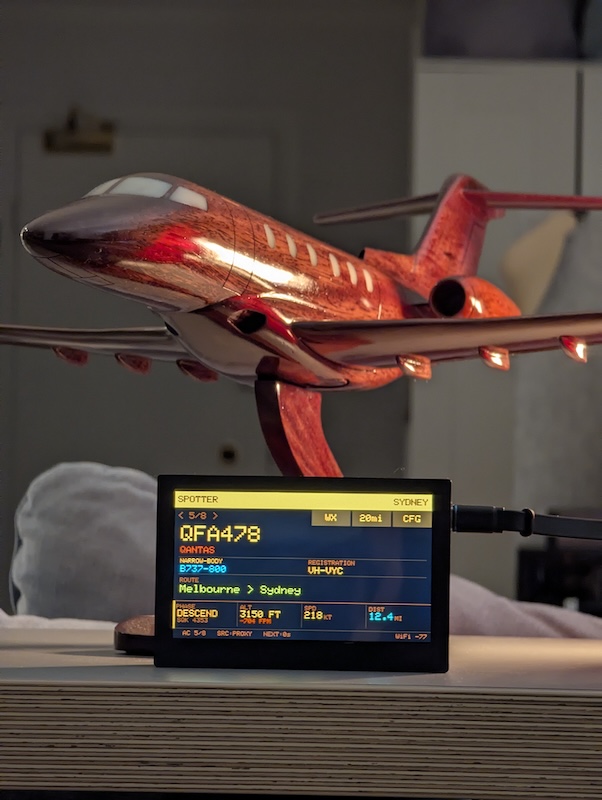
<p><img src="/blog/assets/images/PXL_20260329_080338684.jpg" alt="Foxtrot tracking QFA478, a Qantas B737-800 descending from Melbourne to Sydney at 3,150 ft, with a model aircraft in the foreground" loading="lazy" /></p>

<h2 id="wifi-and-setup">WiFi and setup</h2>

<p>On first boot, Foxtrot launches a captive portal — an open WiFi network called OVERHEAD-SETUP. Connect with your phone, and a setup page asks for three things: WiFi SSID, password, and a location name. The location is geocoded via Nominatim into coordinates and stored in NVS (non-volatile storage) alongside the WiFi credentials. Everything survives reboots and power cycles.</p>

<p>After connecting, the device supports ArduinoOTA — once it’s on your network, firmware updates go over WiFi. It advertises itself as <code class="language-plaintext highlighter-rouge">overhead-foxtrot.local</code> via mDNS. The device also sends a heartbeat POST to the proxy every 60 seconds, reporting firmware version, free heap, WiFi signal strength, and uptime.</p>

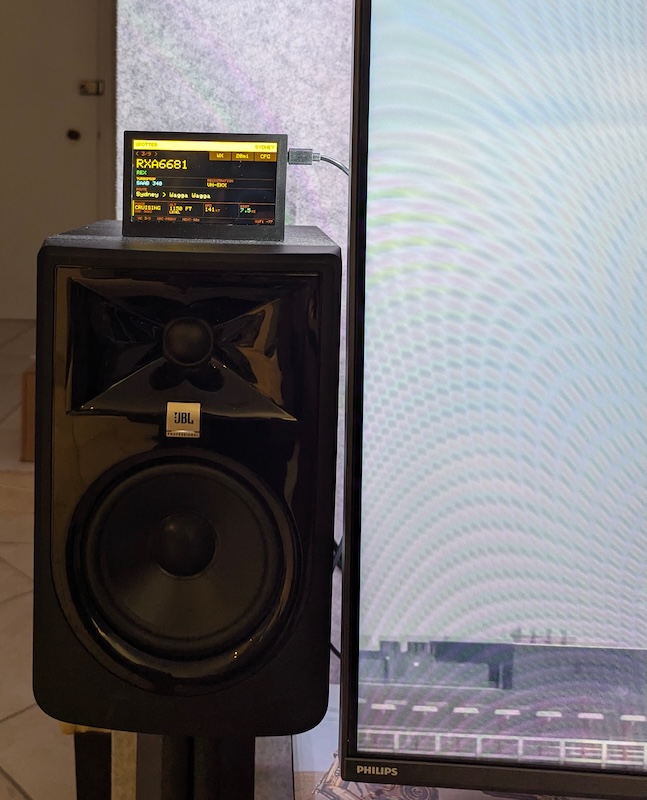
<p><img src="/blog/assets/images/PXL_20260329_080718537.jpg" alt="Foxtrot perched on a speaker tracking RXA6681, a Rex flight from Sydney to Wagga Wagga at 1,150 ft" loading="lazy" /></p>

<h2 id="what-i-learned">What I learned</h2>

<p>Building for the Waveshare 4.3B required solving problems that don’t exist on simpler SPI displays: GPIO conflicts with the RGB bus, I2C bus arbitration between the touch controller and I/O expander, DMA-induced display shimmer, and the complete incompatibility of LVGL with the board’s peripheral architecture.</p>

<p>The immediate-mode rendering approach turned out cleaner than LVGL would have been anyway. No widget trees, no style objects, no memory pool tuning. Just <code class="language-plaintext highlighter-rouge">fillRect</code> and <code class="language-plaintext highlighter-rouge">drawString</code>, with careful attention to the order of operations because the DMA controller is always watching.</p>

<p>Foxtrot is now running in Chicago, tracking flights in and out of O’Hare and Midway. The extra screen real estate and smooth rendering make it a genuine upgrade over Echo, and the capacitive touch makes it feel like a finished product rather than a dev board.</p>

<p>The full source is in the <a href="https://github.com/greystoke1337/localized-air-traffic-tracker/tree/master/tracker_foxtrot">tracker_foxtrot</a> directory of the repo. MIT licensed, like everything else.</p>

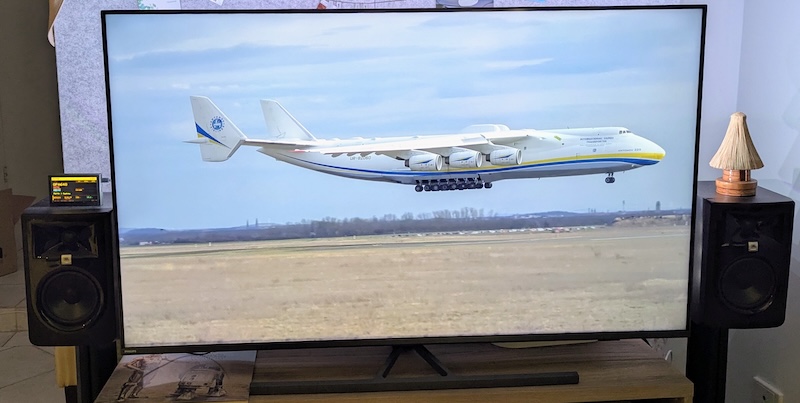
<p><img src="/blog/assets/images/PXL_20260329_080724638~2.jpg" alt="Foxtrot running in the lounge — tiny next to a wall-sized screen showing an Antonov An-225" loading="lazy" /></p>]]></content><author><name>Max</name></author><category term="ESP32" /><category term="Aviation" /><category term="DIY" /><category term="Hardware" /><summary type="html"><![CDATA[After building the Overhead Tracker with a 4” Freenove display (codenamed Echo), I wanted a bigger screen. The Waveshare ESP32-S3-Touch-LCD-4.3B looked perfect — 800x480 IPS, capacitive touch, ESP32-S3 with 8 MB of PSRAM. What I didn’t expect was how many hardware surprises were hiding in this board.]]></summary></entry><entry><title type="html">Deploying the Overhead Tracker to a Freenove ESP32</title><link href="https://greystoke1337.github.io/blog/2026/03/11/esp32-display-getting-started.html" rel="alternate" type="text/html" title="Deploying the Overhead Tracker to a Freenove ESP32" /><published>2026-03-11T00:00:00+00:00</published><updated>2026-03-11T00:00:00+00:00</updated><id>https://greystoke1337.github.io/blog/2026/03/11/esp32-display-getting-started</id><content type="html" xml:base="https://greystoke1337.github.io/blog/2026/03/11/esp32-display-getting-started.html"><![CDATA[<p>This is a step-by-step guide for flashing the <a href="https://github.com/greystoke1337/localized-air-traffic-tracker">Overhead Tracker</a> firmware onto a fresh Freenove ESP32 4-inch display. By the end, you’ll have a standalone device showing every aircraft flying over your location in real time.</p>

<p><img src="/blog/assets/images/overhead-tracker-2.jpg" alt="The ESP32 Overhead Tracker weather screen showing temperature, humidity, and conditions on the 4-inch TFT display" loading="lazy" /></p>

<h2 id="what-you-need">What you need</h2>

<ul>
  <li><strong>Freenove FNK0103S</strong> — an ESP32 dev board with a built-in 4” 480×320 ST7796 touchscreen. ~$25–30 on the Freenove store or Amazon. Everything is on one PCB, no wiring required.</li>
  <li><strong>A USB-C data cable</strong> — not a charge-only cable. If the board doesn’t show up as a serial port, the cable is the problem.</li>
  <li><strong>A Raspberry Pi</strong> (3B+ or newer, optional) — only needed if you want to run a local caching proxy. The firmware defaults to the public proxy at <code class="language-plaintext highlighter-rouge">api.overheadtracker.com</code>, so a Pi is no longer required.</li>
  <li><strong>A computer</strong> with a terminal (macOS, Linux, or Windows with Git Bash / MSYS2).</li>
</ul>

<h2 id="step-1-install-arduino-cli">Step 1: Install arduino-cli</h2>

<p>The project uses <code class="language-plaintext highlighter-rouge">arduino-cli</code> and a build script — not the Arduino IDE GUI. Install it:</p>

<p><strong>macOS (Homebrew):</strong></p>
<div class="language-bash highlighter-rouge"><div class="highlight"><pre class="highlight"><code>brew <span class="nb">install </span>arduino-cli
</code></pre></div></div>

<p><strong>Linux:</strong></p>
<div class="language-bash highlighter-rouge"><div class="highlight"><pre class="highlight"><code>curl <span class="nt">-fsSL</span> https://raw.githubusercontent.com/arduino/arduino-cli/master/install.sh | sh
</code></pre></div></div>

<p><strong>Windows (MSYS2 / Git Bash):</strong>
Download the latest release from <a href="https://arduino.github.io/arduino-cli/latest/installation/">arduino.github.io/arduino-cli</a> and add it to your PATH.</p>

<p>Then add ESP32 board support:</p>

<div class="language-bash highlighter-rouge"><div class="highlight"><pre class="highlight"><code>arduino-cli core update-index <span class="se">\</span>
  <span class="nt">--additional-urls</span> https://raw.githubusercontent.com/espressif/arduino-esp32/gh-pages/package_esp32_index.json
arduino-cli core <span class="nb">install </span>esp32:esp32 <span class="se">\</span>
  <span class="nt">--additional-urls</span> https://raw.githubusercontent.com/espressif/arduino-esp32/gh-pages/package_esp32_index.json
</code></pre></div></div>

<h2 id="step-2-install-required-libraries">Step 2: Install required libraries</h2>

<div class="language-bash highlighter-rouge"><div class="highlight"><pre class="highlight"><code>arduino-cli lib <span class="nb">install</span> <span class="s2">"ArduinoJson"</span>
arduino-cli lib <span class="nb">install</span> <span class="s2">"LovyanGFX"</span>
</code></pre></div></div>

<p>The SD and ArduinoOTA libraries are built into the ESP32 core, so no separate install is needed.</p>

<h2 id="step-3-clone-the-repo">Step 3: Clone the repo</h2>

<div class="language-bash highlighter-rouge"><div class="highlight"><pre class="highlight"><code>git clone https://github.com/greystoke1337/localized-air-traffic-tracker.git
<span class="nb">cd </span>localized-air-traffic-tracker/tracker_live_fnk0103s
</code></pre></div></div>

<h2 id="step-4-create-your-secrets-file">Step 4: Create your secrets file</h2>

<div class="language-bash highlighter-rouge"><div class="highlight"><pre class="highlight"><code><span class="nb">cp </span>secrets.h.example secrets.h
</code></pre></div></div>

<p>Open <code class="language-plaintext highlighter-rouge">secrets.h</code> and set your default WiFi credentials:</p>

<div class="language-cpp highlighter-rouge"><div class="highlight"><pre class="highlight"><code><span class="cp">#pragma once
#define WIFI_SSID_DEFAULT "your-wifi-ssid"
#define WIFI_PASS_DEFAULT "your-wifi-password"
</span></code></pre></div></div>

<p>These are fallback defaults baked into the firmware. You’ll also be able to configure WiFi through the on-device captive portal after flashing (more on that below).</p>

<h2 id="step-5-configure-the-proxy-address-optional">Step 5: Configure the proxy address (optional)</h2>

<p>The firmware defaults to the public proxy at <code class="language-plaintext highlighter-rouge">api.overheadtracker.com</code>, so you can skip this step if you don’t need a local proxy. If you want to use your own Raspberry Pi proxy, open <code class="language-plaintext highlighter-rouge">tracker_live_fnk0103s.ino</code> and find the <code class="language-plaintext highlighter-rouge">PROXY_HOST</code> definition:</p>

<div class="language-cpp highlighter-rouge"><div class="highlight"><pre class="highlight"><code><span class="cp">#define PROXY_HOST "192.168.1.100"  // your Pi's IP (default: api.overheadtracker.com)
</span></code></pre></div></div>

<p>If the proxy is unreachable, the tracker falls back to querying the ADS-B API directly — it’ll still work, just with slightly less reliability under heavy use.</p>

<h2 id="step-6-flash-the-firmware">Step 6: Flash the firmware</h2>

<p>Plug in your Freenove board via USB-C and run:</p>

<div class="language-bash highlighter-rouge"><div class="highlight"><pre class="highlight"><code>./build.sh
</code></pre></div></div>

<p>That’s it. The build script compiles the firmware, auto-detects your board’s USB port, and uploads. You should see the boot sequence animation on the display within about 30 seconds.</p>

<p>Other useful build commands:</p>

<table>
  <thead>
    <tr>
      <th>Command</th>
      <th>What it does</th>
    </tr>
  </thead>
  <tbody>
    <tr>
      <td><code class="language-plaintext highlighter-rouge">./build.sh compile</code></td>
      <td>Compile only, don’t upload</td>
    </tr>
    <tr>
      <td><code class="language-plaintext highlighter-rouge">./build.sh upload</code></td>
      <td>Upload the last compiled build</td>
    </tr>
    <tr>
      <td><code class="language-plaintext highlighter-rouge">./build.sh monitor</code></td>
      <td>Open serial monitor (115200 baud)</td>
    </tr>
    <tr>
      <td><code class="language-plaintext highlighter-rouge">./build.sh ota</code></td>
      <td>Flash over WiFi to <code class="language-plaintext highlighter-rouge">overhead-tracker.local</code></td>
    </tr>
    <tr>
      <td><code class="language-plaintext highlighter-rouge">./build.sh safe</code></td>
      <td>Run tests + compile with strict warnings</td>
    </tr>
  </tbody>
</table>

<p>If upload fails with “No serial data received”, hold the <strong>BOOT</strong> button on the board while the script tries to connect, then release once you see “Connecting…” in the terminal.</p>

<h2 id="step-7-connect-to-wifi">Step 7: Connect to WiFi</h2>

<p>On first boot — or if no saved WiFi config is found — the tracker launches a <strong>captive portal</strong>:</p>

<ol>
  <li>The display shows: <code class="language-plaintext highlighter-rouge">CONNECT TO WI-FI: OVERHEAD-SETUP</code></li>
  <li>On your phone or laptop, join the WiFi network called <strong>OVERHEAD-SETUP</strong> (open, no password)</li>
  <li>A setup page should open automatically. If it doesn’t, navigate to <code class="language-plaintext highlighter-rouge">192.168.4.1</code> in your browser</li>
  <li>Fill in three fields:
    <ul>
      <li><strong>Wi-Fi Network</strong> — your home WiFi SSID</li>
      <li><strong>Wi-Fi Password</strong> — your WiFi password</li>
      <li><strong>Location</strong> — a place name like <code class="language-plaintext highlighter-rouge">"Russell Lea, Sydney Airport"</code> or <code class="language-plaintext highlighter-rouge">"Brooklyn, New York"</code></li>
    </ul>
  </li>
  <li>Hit save. The device reboots, connects to your WiFi, and geocodes the location name into coordinates using OpenStreetMap</li>
</ol>

<p>The credentials and location are stored in the ESP32’s non-volatile storage (NVS), so they survive reboots and power cycles. You never need to recompile to change WiFi networks.</p>

<h3 id="re-entering-setup-mode">Re-entering setup mode</h3>

<p>If you move the device to a new network or need to change the location, double-tap the <strong>CFG</strong> button on the bottom navigation bar (within 3 seconds). This clears the saved config and reboots into the captive portal.</p>

<h3 id="if-wifi-connection-fails">If WiFi connection fails</h3>

<p>If the device can’t connect after ~20 seconds, it shows a failure screen with two touch buttons:</p>

<ul>
  <li><strong>RECONFIGURE</strong> — clears saved WiFi and launches the captive portal again</li>
  <li><strong>RETRY</strong> — reboots and tries the saved credentials one more time</li>
</ul>

<h2 id="step-8-set-up-a-local-pi-proxy-optional">Step 8: Set up a local Pi proxy (optional)</h2>

<p>The device works out of the box with the public proxy at <code class="language-plaintext highlighter-rouge">api.overheadtracker.com</code>. If you’d prefer to run your own local proxy — for lower latency on your LAN or to avoid depending on the public server — you can set one up on a Raspberry Pi. The proxy is a lightweight Node.js server that caches ADS-B API responses, preventing rate limits when the device polls every 15 seconds.</p>

<p>Full setup instructions are in <a href="https://github.com/greystoke1337/localized-air-traffic-tracker/blob/main/PI_PROXY_SETUP.md">PI_PROXY_SETUP.md</a> in the repo. The short version:</p>

<ol>
  <li>Install Node.js on your Pi</li>
  <li>Copy the proxy files over</li>
  <li>Run <code class="language-plaintext highlighter-rouge">npm install &amp;&amp; npm start</code></li>
  <li>The proxy listens on port 3000</li>
</ol>

<p>The proxy also serves weather data from Open-Meteo, which powers the weather screen on the device (tap <strong>WX</strong> on the nav bar).</p>

<h2 id="what-you-should-see">What you should see</h2>

<p>Once connected, the tracker cycles through nearby flights every 8 seconds. Each flight card shows:</p>

<ul>
  <li><strong>Callsign</strong> and airline name (color-coded for ~46 airlines)</li>
  <li><strong>Aircraft type</strong> and registration</li>
  <li><strong>Route</strong> — departure and arrival airports</li>
  <li><strong>Dashboard</strong> — flight phase, altitude, speed, and distance from your location</li>
</ul>

<p>Tap the <strong>GEO</strong> button to cycle the geofence radius between 5 km, 10 km, and 20 km. The device tracks up to 20 flights simultaneously and refreshes data every 15 seconds.</p>

<h2 id="troubleshooting">Troubleshooting</h2>

<p><strong>Board not detected.</strong> Try a different USB-C cable. Charge-only cables are extremely common and won’t work. On Windows, you may need the <a href="https://www.silabs.com/developer-tools/usb-to-uart-bridge-vcp-drivers">CP210x</a> or <a href="http://www.wch-ic.com/downloads/CH341SER_EXE.html">CH340</a> USB driver.</p>

<p><strong>White/blank screen after flash.</strong> The display driver config in <code class="language-plaintext highlighter-rouge">lgfx_config.h</code> should match the Freenove FNK0103S out of the box. If you’re using a different board, the pin assignments will need to change.</p>

<p><strong>Captive portal doesn’t appear.</strong> Make sure you’re connected to the <code class="language-plaintext highlighter-rouge">OVERHEAD-SETUP</code> network. Try navigating to <code class="language-plaintext highlighter-rouge">192.168.4.1</code> manually. Some phones aggressively disconnect from networks without internet — disable auto-switch temporarily.</p>

<p><strong>“No flights” showing.</strong> Check your geofence radius — 5 km is tight. Try 20 km first. Also verify your location was geocoded correctly by checking the header bar on the display. If the proxy isn’t reachable, the device falls back to direct API queries — watch the serial monitor (<code class="language-plaintext highlighter-rouge">./build.sh monitor</code>) for connection errors.</p>

<p><strong>Crashes or reboots.</strong> Open the serial monitor to see error output. The device has a 30-second hardware watchdog, so if a network request hangs, it will restart automatically. Make sure PSRAM is enabled in the board configuration (the build script handles this).</p>

<h2 id="ota-updates">OTA updates</h2>

<p>After the initial USB flash, you can push firmware updates over WiFi:</p>

<div class="language-bash highlighter-rouge"><div class="highlight"><pre class="highlight"><code>./build.sh ota
</code></pre></div></div>

<p>This uploads to <code class="language-plaintext highlighter-rouge">overhead-tracker.local</code> via mDNS. The display shows a green progress bar during the update. Your device needs to be on the same network as your computer.</p>

<h2 id="3d-printed-enclosure">3D-printed enclosure</h2>

<p>The repo includes STL and STEP files in the <code class="language-plaintext highlighter-rouge">tracker_live_fnk0103s/enclosure/</code> directory for a snap-fit case with a display stand. Print at 0.2mm layer height, no supports needed for the case body.</p>]]></content><author><name>Max</name></author><category term="ESP32" /><category term="DIY" /><category term="Tutorial" /><summary type="html"><![CDATA[This is a step-by-step guide for flashing the Overhead Tracker firmware onto a fresh Freenove ESP32 4-inch display. By the end, you’ll have a standalone device showing every aircraft flying over your location in real time.]]></summary></entry><entry><title type="html">Building My Overhead Tracker</title><link href="https://greystoke1337.github.io/blog/2026/03/10/overhead-tracker.html" rel="alternate" type="text/html" title="Building My Overhead Tracker" /><published>2026-03-10T00:00:00+00:00</published><updated>2026-03-10T00:00:00+00:00</updated><id>https://greystoke1337.github.io/blog/2026/03/10/overhead-tracker</id><content type="html" xml:base="https://greystoke1337.github.io/blog/2026/03/10/overhead-tracker.html"><![CDATA[<p>I live underneath a flight path, and I’m always wondering what plane is flying overhead. I looked up online, and the only device that was well referenced was <a href="https://theflightwall.com/">the flight wall</a>. Unfortunately, can’t buy it in Australia.</p>

<p>So I decided to build my own from scratch. What started as a quick weekend hack turned into a five-part system: a web app, a cloud proxy, two standalone ESP32 displays with touchscreens, and a Raspberry Pi dashboard. No API keys anywhere, no build step, no dependencies. The whole thing is MIT licensed and running live at <a href="https://overheadtracker.com">overheadtracker.com</a>.</p>

<h2 id="architecture">Architecture</h2>

<p>The project has five components that work together but can each function independently:</p>

<p><strong>The web app</strong> is a single <code class="language-plaintext highlighter-rouge">index.html</code> file, 2,500 lines of vanilla JavaScript with Leaflet for the map. You can clone the repo and open the file directly in a browser. It deploys to GitHub Pages on every push.</p>

<p><strong>The proxy server</strong> is a Node.js/Express server hosted on Railway at <code class="language-plaintext highlighter-rouge">api.overheadtracker.com</code>. It exists for three reasons: cache upstream API responses so multiple clients don’t hammer free services, enrich flight data with route information the raw APIs don’t provide, and give the ESP32s a single HTTP endpoint instead of dealing with HTTPS certificate validation on a microcontroller.</p>

<p><strong>Echo</strong>, the first hardware display, is a Freenove FNK0103S — an ESP32 with a 4” 480x320 SPI touchscreen. It sits on a shelf and cycles through overhead flights every 8 seconds.</p>

<p><strong>Foxtrot</strong> is the second-generation display: a Waveshare ESP32-S3-Touch-LCD-4.3B with an 800x480 IPS screen, capacitive touch, and 8 MB of PSRAM. Bigger screen, smoother rendering, and a whole set of hardware challenges that earned <a href="/blog/2026/03/19/foxtrot.html">its own post</a>.</p>

<p><strong>The Pi display</strong> is a Raspberry Pi 3B+ driving a 3.5” TFT, running a Python/Pygame dashboard that auto-rotates between three pages: a flights page showing the two closest aircraft, a stats page with proxy health and a 24-hour traffic histogram, and a server status page showing connected device health cards.</p>

<h2 id="finding-the-right-apis">Finding the right APIs</h2>

<p>The first problem was getting live aircraft positions. Commercial services like FlightRadar24 charge for API access, but there’s a whole ecosystem of community-run ADS-B feeders that aggregate data from volunteers with RTL-SDR receivers. I found three that offer free, keyless JSON APIs:</p>

<h3 id="ads-b-flight-data">ADS-B flight data</h3>

<p>All three services, <a href="https://adsb.lol">adsb.lol</a>, <a href="https://adsb.fi">adsb.fi</a>, and <a href="https://airplanes.live">airplanes.live</a> — accept a simple point query: give them a latitude, longitude, and radius in nautical miles, and they return every aircraft in that circle. The response is a JSON array where each aircraft has a hex identifier, callsign, altitude, ground speed, vertical rate, heading, squawk code, and ICAO aircraft type code.</p>

<p>Since these are volunteer-run, any one might go down at any time. Instead of racing all three in parallel (which wastes two API calls per request), the proxy tries them sequentially in round-robin order — one call per cache miss instead of three:</p>

<div class="language-javascript highlighter-rouge"><div class="highlight"><pre class="highlight"><code><span class="kd">const</span> <span class="nx">apis</span> <span class="o">=</span> <span class="p">[</span>
  <span class="p">{</span> <span class="na">name</span><span class="p">:</span> <span class="dl">'</span><span class="s1">adsb.lol</span><span class="dl">'</span><span class="p">,</span>       <span class="na">url</span><span class="p">:</span> <span class="s2">`https://api.adsb.lol/v2/point/</span><span class="p">${</span><span class="nx">lat</span><span class="p">}</span><span class="s2">/</span><span class="p">${</span><span class="nx">lon</span><span class="p">}</span><span class="s2">/</span><span class="p">${</span><span class="nx">radius</span><span class="p">}</span><span class="s2">`</span> <span class="p">},</span>
  <span class="p">{</span> <span class="na">name</span><span class="p">:</span> <span class="dl">'</span><span class="s1">adsb.fi</span><span class="dl">'</span><span class="p">,</span>        <span class="na">url</span><span class="p">:</span> <span class="s2">`https://opendata.adsb.fi/api/v3/lat/</span><span class="p">${</span><span class="nx">lat</span><span class="p">}</span><span class="s2">/lon/</span><span class="p">${</span><span class="nx">lon</span><span class="p">}</span><span class="s2">/dist/</span><span class="p">${</span><span class="nx">radius</span><span class="p">}</span><span class="s2">`</span> <span class="p">},</span>
  <span class="p">{</span> <span class="na">name</span><span class="p">:</span> <span class="dl">'</span><span class="s1">airplanes.live</span><span class="dl">'</span><span class="p">,</span> <span class="na">url</span><span class="p">:</span> <span class="s2">`https://api.airplanes.live/v2/point/</span><span class="p">${</span><span class="nx">lat</span><span class="p">}</span><span class="s2">/</span><span class="p">${</span><span class="nx">lon</span><span class="p">}</span><span class="s2">/</span><span class="p">${</span><span class="nx">radius</span><span class="p">}</span><span class="s2">`</span> <span class="p">},</span>
<span class="p">];</span>

<span class="c1">// Try APIs sequentially (round-robin) — 1 call per cache miss instead of 3</span>
<span class="kd">const</span> <span class="nx">startIdx</span> <span class="o">=</span> <span class="nx">apiRoundRobin</span> <span class="o">%</span> <span class="nx">apis</span><span class="p">.</span><span class="nx">length</span><span class="p">;</span>
<span class="k">for</span> <span class="p">(</span><span class="kd">let</span> <span class="nx">attempt</span> <span class="o">=</span> <span class="mi">0</span><span class="p">;</span> <span class="nx">attempt</span> <span class="o">&lt;</span> <span class="nx">apis</span><span class="p">.</span><span class="nx">length</span><span class="p">;</span> <span class="nx">attempt</span><span class="o">++</span><span class="p">)</span> <span class="p">{</span>
  <span class="kd">const</span> <span class="nx">api</span> <span class="o">=</span> <span class="nx">apis</span><span class="p">[(</span><span class="nx">startIdx</span> <span class="o">+</span> <span class="nx">attempt</span><span class="p">)</span> <span class="o">%</span> <span class="nx">apis</span><span class="p">.</span><span class="nx">length</span><span class="p">];</span>
  <span class="k">try</span> <span class="p">{</span>
    <span class="kd">const</span> <span class="nx">r</span> <span class="o">=</span> <span class="k">await</span> <span class="nx">fetch</span><span class="p">(</span><span class="nx">api</span><span class="p">.</span><span class="nx">url</span><span class="p">,</span> <span class="p">{</span> <span class="na">signal</span><span class="p">:</span> <span class="nx">AbortSignal</span><span class="p">.</span><span class="nx">timeout</span><span class="p">(</span><span class="mi">2500</span><span class="p">)</span> <span class="p">});</span>
    <span class="k">if</span> <span class="p">(</span><span class="nx">r</span><span class="p">.</span><span class="nx">status</span> <span class="o">===</span> <span class="mi">429</span><span class="p">)</span> <span class="p">{</span> <span class="nx">cooldown</span><span class="p">(</span><span class="nx">api</span><span class="p">);</span> <span class="k">continue</span><span class="p">;</span> <span class="p">}</span>
    <span class="k">if</span> <span class="p">(</span><span class="o">!</span><span class="nx">r</span><span class="p">.</span><span class="nx">ok</span><span class="p">)</span> <span class="k">continue</span><span class="p">;</span>
    <span class="nx">data</span> <span class="o">=</span> <span class="k">await</span> <span class="nx">r</span><span class="p">.</span><span class="nx">json</span><span class="p">();</span>
    <span class="k">break</span><span class="p">;</span>
  <span class="p">}</span> <span class="k">catch</span> <span class="p">{</span> <span class="k">continue</span><span class="p">;</span> <span class="p">}</span>
<span class="p">}</span>
<span class="nx">apiRoundRobin</span><span class="o">++</span><span class="p">;</span>
</code></pre></div></div>

<p>The round-robin counter rotates which API is tried first, spreading load evenly across all three services. If one fails or returns a 429 rate-limit, it gets a 60-second cooldown and the next API in the rotation is tried immediately. The web app has its own fallback chain too — it tries the proxy first (6-second timeout), then falls back to hitting the APIs directly.</p>

<h3 id="route-and-airline-lookup">Route and airline lookup</h3>

<p>ADS-B data gives you a callsign like <code class="language-plaintext highlighter-rouge">QFA1</code> and a hex code, but not where the flight is going. To get departure and arrival airports, the proxy queries <a href="https://www.adsbdb.com">adsbdb.com</a> — a community-run database that returns origin/destination airports for a given callsign. On the first time the proxy sees a new callsign, it blocks for up to 3 seconds to fetch the route from adsbdb before responding. This eliminates the “NO ROUTE DATA” problem where flights would appear without route information on first sight.</p>

<p>Routes are cached with a 30-minute TTL (LRU-evicted at 5,000 entries). A flight’s route doesn’t change mid-air, so there’s no point re-fetching it every 15 seconds.</p>

<p>Airline names come from the ICAO callsign prefix — <code class="language-plaintext highlighter-rouge">QFA</code> maps to Qantas, <code class="language-plaintext highlighter-rouge">CPA</code> to Cathay Pacific, <code class="language-plaintext highlighter-rouge">UAE</code> to Emirates. The lookup table covers 46 airlines, each colour-coded by one of eight brand colours: Qantas red, Cathay green, Emirates gold, and so on. Aircraft type codes get translated too — <code class="language-plaintext highlighter-rouge">B789</code> becomes <code class="language-plaintext highlighter-rouge">B787-9 Dreamliner</code>, <code class="language-plaintext highlighter-rouge">A20N</code> becomes <code class="language-plaintext highlighter-rouge">A320neo</code>. The airport database covers nearly 600 airports worldwide after expanding for international deployments.</p>

<h3 id="everything-else">Everything else</h3>

<p>The remaining APIs are straightforward: <strong>Nominatim</strong> (OpenStreetMap) for geocoding locations, <strong>Planespotters.net</strong> for aircraft photos by registration, <strong>Open-Meteo</strong> for weather data, and <strong>CartoDB</strong> for dark map tiles. Every single one is free and keyless. The only API key in the project is for <strong>Resend</strong>, used to send daily flight reports and route discovery emails.</p>

<h2 id="flight-phase-detection">Flight phase detection</h2>

<p>Each aircraft’s flight phase is derived purely from its altitude and vertical rate — no external data needed. The logic is a simple decision tree:</p>

<div class="language-javascript highlighter-rouge"><div class="highlight"><pre class="highlight"><code><span class="kd">function</span> <span class="nx">flightPhase</span><span class="p">(</span><span class="nx">f</span><span class="p">)</span> <span class="p">{</span>
  <span class="kd">const</span> <span class="nx">alt</span>  <span class="o">=</span> <span class="nx">f</span><span class="p">.</span><span class="nx">alt_baro</span><span class="p">;</span>
  <span class="kd">const</span> <span class="nx">vspd</span> <span class="o">=</span> <span class="nx">f</span><span class="p">.</span><span class="nx">baro_rate</span> <span class="o">||</span> <span class="mi">0</span><span class="p">;</span>

  <span class="k">if</span> <span class="p">(</span><span class="nx">alt</span> <span class="o">&lt;</span> <span class="mi">3000</span><span class="p">)</span> <span class="p">{</span>
    <span class="k">if</span> <span class="p">(</span><span class="nx">vspd</span> <span class="o">&lt;</span> <span class="o">-</span><span class="mi">200</span><span class="p">)</span> <span class="k">return</span> <span class="dl">'</span><span class="s1">LANDING</span><span class="dl">'</span><span class="p">;</span>
    <span class="k">if</span> <span class="p">(</span><span class="nx">vspd</span> <span class="o">&gt;</span>  <span class="mi">200</span><span class="p">)</span> <span class="k">return</span> <span class="dl">'</span><span class="s1">TAKING OFF</span><span class="dl">'</span><span class="p">;</span>
    <span class="k">if</span> <span class="p">(</span><span class="nx">vspd</span> <span class="o">&lt;</span>  <span class="o">-</span><span class="mi">50</span><span class="p">)</span> <span class="k">return</span> <span class="dl">'</span><span class="s1">APPROACH</span><span class="dl">'</span><span class="p">;</span>
  <span class="p">}</span>
  <span class="k">if</span> <span class="p">(</span><span class="nx">vspd</span> <span class="o">&lt;</span> <span class="o">-</span><span class="mi">100</span><span class="p">)</span> <span class="k">return</span> <span class="dl">'</span><span class="s1">DESCENDING</span><span class="dl">'</span><span class="p">;</span>
  <span class="k">if</span> <span class="p">(</span><span class="nx">vspd</span> <span class="o">&gt;</span>  <span class="mi">100</span><span class="p">)</span> <span class="k">return</span> <span class="dl">'</span><span class="s1">CLIMBING</span><span class="dl">'</span><span class="p">;</span>
  <span class="k">return</span> <span class="dl">'</span><span class="s1">OVERHEAD</span><span class="dl">'</span><span class="p">;</span>
<span class="p">}</span>
</code></pre></div></div>

<p>The ESP32 firmware uses the same logic but adds two extra states: <code class="language-plaintext highlighter-rouge">CRUISING</code> as the default instead of <code class="language-plaintext highlighter-rouge">OVERHEAD</code>, and a dedicated <code class="language-plaintext highlighter-rouge">OVERHEAD</code> that triggers when the aircraft is within 2 km and below 8,000 ft. This distinction matters on a passive display that cycles through flights automatically, you want to know which plane is actually directly above you versus one that’s just high up and level.</p>

<p>Each phase gets a distinct colour in the UI. On the web app, the flight info block’s left border glows with the phase colour, red for landing, green for takeoff, amber for approach. On the ESP32, the phase column in the dashboard lights up the same way.</p>

<h2 id="making-it-resilient">Making it resilient</h2>

<h3 id="request-deduplication">Request deduplication</h3>

<p>When 10 ESP32 devices and the web app all poll at the same time, only one upstream request should fire. The proxy uses an <code class="language-plaintext highlighter-rouge">inFlight</code> Map, the first request for a given coordinate set creates a Promise and stores it. Every subsequent request for the same coordinates awaits the same Promise:</p>

<div class="language-javascript highlighter-rouge"><div class="highlight"><pre class="highlight"><code><span class="kd">const</span> <span class="nx">inFlight</span> <span class="o">=</span> <span class="k">new</span> <span class="nb">Map</span><span class="p">();</span>

<span class="k">if</span> <span class="p">(</span><span class="o">!</span><span class="nx">inFlight</span><span class="p">.</span><span class="nx">has</span><span class="p">(</span><span class="nx">key</span><span class="p">))</span> <span class="p">{</span>
  <span class="kd">const</span> <span class="nx">promise</span> <span class="o">=</span> <span class="p">(</span><span class="k">async</span> <span class="p">()</span> <span class="o">=&gt;</span> <span class="p">{</span>
    <span class="c1">// ... fetch from upstream, cache result</span>
  <span class="p">})();</span>
  <span class="nx">inFlight</span><span class="p">.</span><span class="kd">set</span><span class="p">(</span><span class="nx">key</span><span class="p">,</span> <span class="nx">promise</span><span class="p">);</span>
  <span class="nx">promise</span><span class="p">.</span><span class="k">finally</span><span class="p">(()</span> <span class="o">=&gt;</span> <span class="nx">inFlight</span><span class="p">.</span><span class="k">delete</span><span class="p">(</span><span class="nx">key</span><span class="p">));</span>
<span class="p">}</span>
<span class="k">return</span> <span class="k">await</span> <span class="nx">inFlight</span><span class="p">.</span><span class="kd">get</span><span class="p">(</span><span class="nx">key</span><span class="p">);</span>
</code></pre></div></div>

<p>No thundering herd, no wasted API calls.</p>

<h3 id="caching-and-stale-fallback">Caching and stale fallback</h3>

<p>The proxy caches at three tiers: ADS-B data for 15 seconds, weather for 10 minutes, routes for 30 minutes. The key design decision: if an upstream API fails but stale cache exists, serve it. Flight data from 30 seconds ago is far better than an error. The response stays useful even if it’s slightly out of date.</p>

<h3 id="esp32-fallback-cascade">ESP32 fallback cascade</h3>

<p>Both firmware variants have a 3-tier fallback: Railway proxy over the internet, direct HTTPS to airplanes.live, SD card cache file. If the proxy is unreachable, the TCP connect timeout is 3 seconds — fast enough that the device boots cleanly even when the proxy is down, with no crash loop. After 3 consecutive proxy failures, the firmware skips the proxy entirely for 5 minutes and goes straight to the direct API. Direct API calls are only attempted if free heap is above 40 KB to avoid out-of-memory crashes from the larger HTTPS overhead.</p>

<h3 id="memory-on-a-microcontroller">Memory on a microcontroller</h3>

<p>The ESP32 has limited heap, and repeated <code class="language-plaintext highlighter-rouge">malloc</code>/<code class="language-plaintext highlighter-rouge">free</code> calls fragment it over hours of continuous operation. The firmware allocates a single 16 KB JSON document at startup and reuses it every refresh cycle. That eliminates heap fragmentation and mysterious crashes after running overnight.</p>

<h2 id="the-web-app">The web app</h2>

<p>The web app is the primary interface, a single <code class="language-plaintext highlighter-rouge">index.html</code> that runs in any browser. Here’s what it looks like tracking flights out of Sydney:</p>

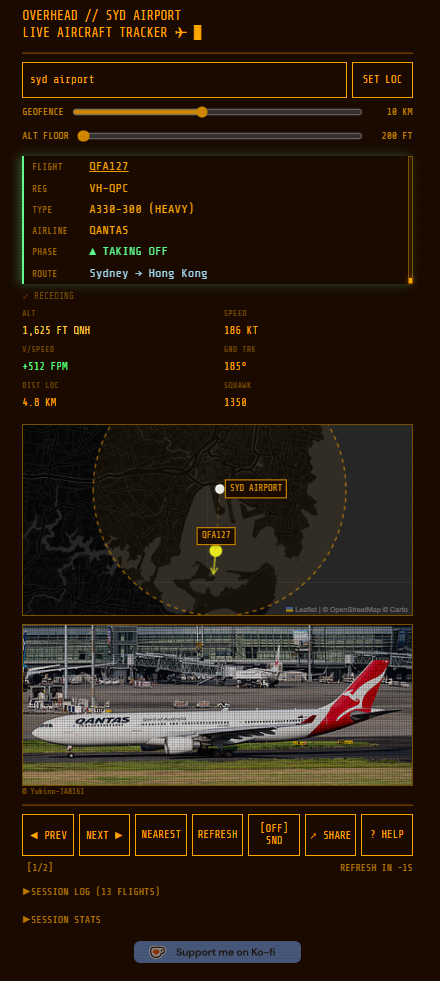
<p><img src="/blog/assets/images/overhead-tracker-3.png" alt="The Overhead Tracker web app showing QFA127, a Qantas A330-300 taking off from Sydney toward Hong Kong, with live telemetry, dark map, and aircraft photo" loading="lazy" /></p>

<p>At the top, a search bar takes any location (geocoded via Nominatim) and two sliders control the geofence radius and altitude floor, useful for filtering out high-altitude overflights or ground vehicles. Below that, the flight info card shows everything enriched by the proxy: callsign, registration, aircraft type with weight class, airline name, colour-coded flight phase, and full route.</p>

<p>The app now predicts intercept geometry — each aircraft is tagged as INBOUND, CROSSING, DIRECTLY OVERHEAD, or RECEDING based on its heading relative to your position, with an estimated time shown for inbound and crossing flights. Flight badges flag interesting aircraft: military, private/charter, bizjet, high speed (&gt;520 kt), very high altitude (&gt;43,000 ft), and anonymous (no callsign).</p>

<p>The six-cell data readout underneath displays raw ADS-B telemetry — altitude (QNH-corrected), ground speed, vertical speed, ground track, distance from your location, and squawk code. A weather strip shows local conditions from Open-Meteo (temperature, humidity, wind, UV). Below that, a Leaflet map on dark CartoDB tiles draws the geofence circle and plots the aircraft’s position relative to the tracked location.</p>

<p>When a registration is available, the app pulls an aircraft photo from Planespotters.net and displays it with photographer credit. The nav bar at the bottom lets you cycle through aircraft with PREV/NEXT, jump to the closest with NEAREST, toggle audio flight announcements with SND, or generate a shareable link. A session log tracks every aircraft seen since page load, with aggregate statistics: total seen, busiest airline, most common type, highest altitude, fastest speed, and closest approach.</p>

<p>The whole thing supports metric and imperial units, a light/dark mode toggle, and keyboard navigation for accessibility. You can share any location as a URL parameter, and there’s a demo mode (<code class="language-plaintext highlighter-rouge">?demo=true</code>) with seven scenarios — busy airport, quiet suburb, emergency squawk, and more — so people can try it without being near an airport.</p>

<h2 id="the-esp32-displays">The ESP32 displays</h2>

<h3 id="echo--the-4-display">Echo — the 4” display</h3>

<p>The first hardware build uses a Freenove FNK0103S, an ESP32 with a 4” 480x320 SPI touchscreen. Three touch buttons sit in the nav bar: <strong>WX</strong> shows the weather screen, <strong>GEO</strong> cycles through geofence radii (5 / 10 / 20 km), and <strong>CFG</strong> launches a captive portal where you configure WiFi credentials and location.</p>

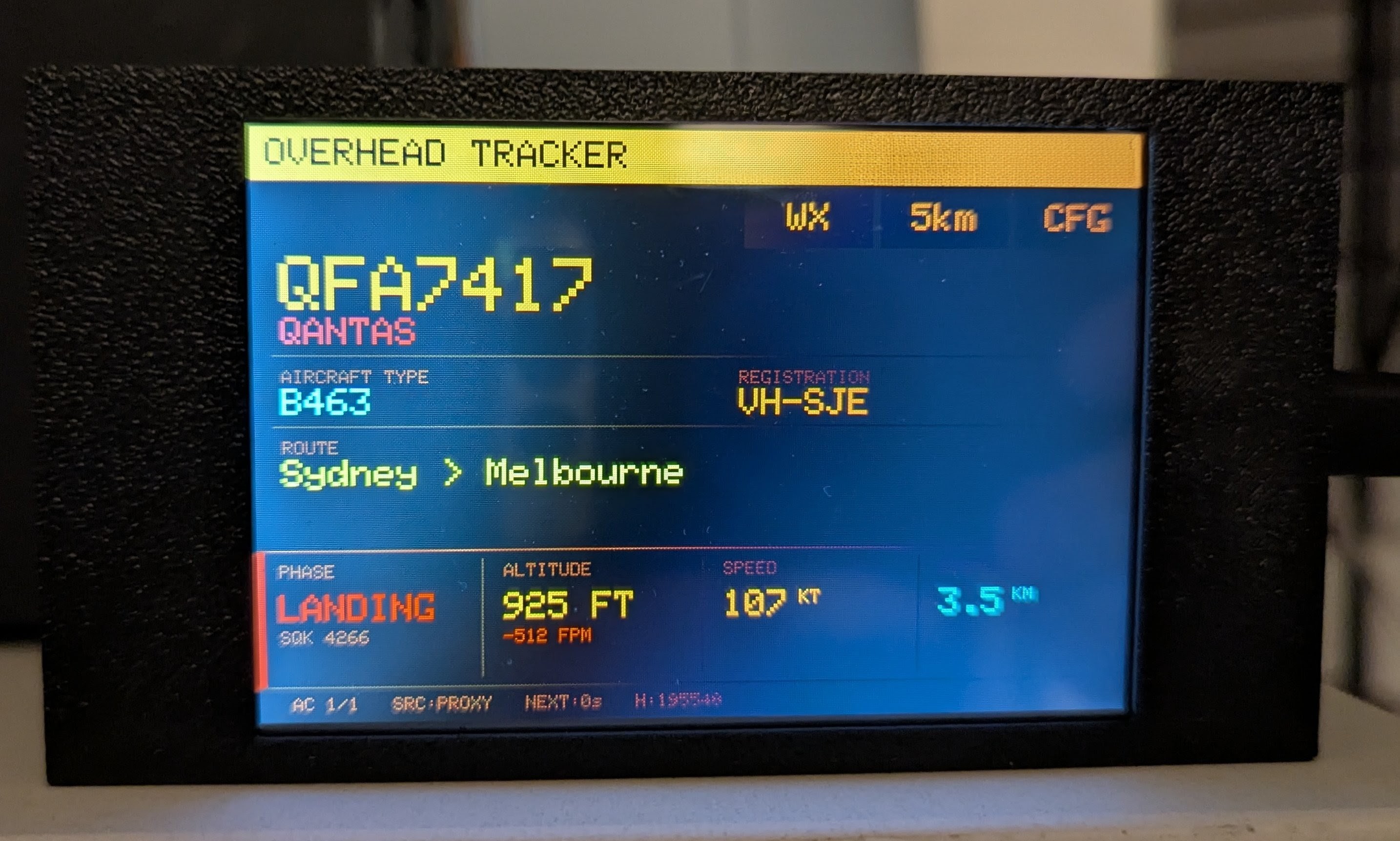
<p><img src="/blog/assets/images/overhead-tracker-1.jpg" alt="The ESP32 display showing a Qantas 737 on final approach into Sydney, 925 ft, 107 knots, 3.5 km out" loading="lazy" /></p>

<p>After the first USB flash, OTA updates work over WiFi — the device advertises itself as <code class="language-plaintext highlighter-rouge">overhead-tracker.local</code> via mDNS. Run <code class="language-plaintext highlighter-rouge">./build.sh ota</code> and the TFT shows a green progress bar during the upload.</p>

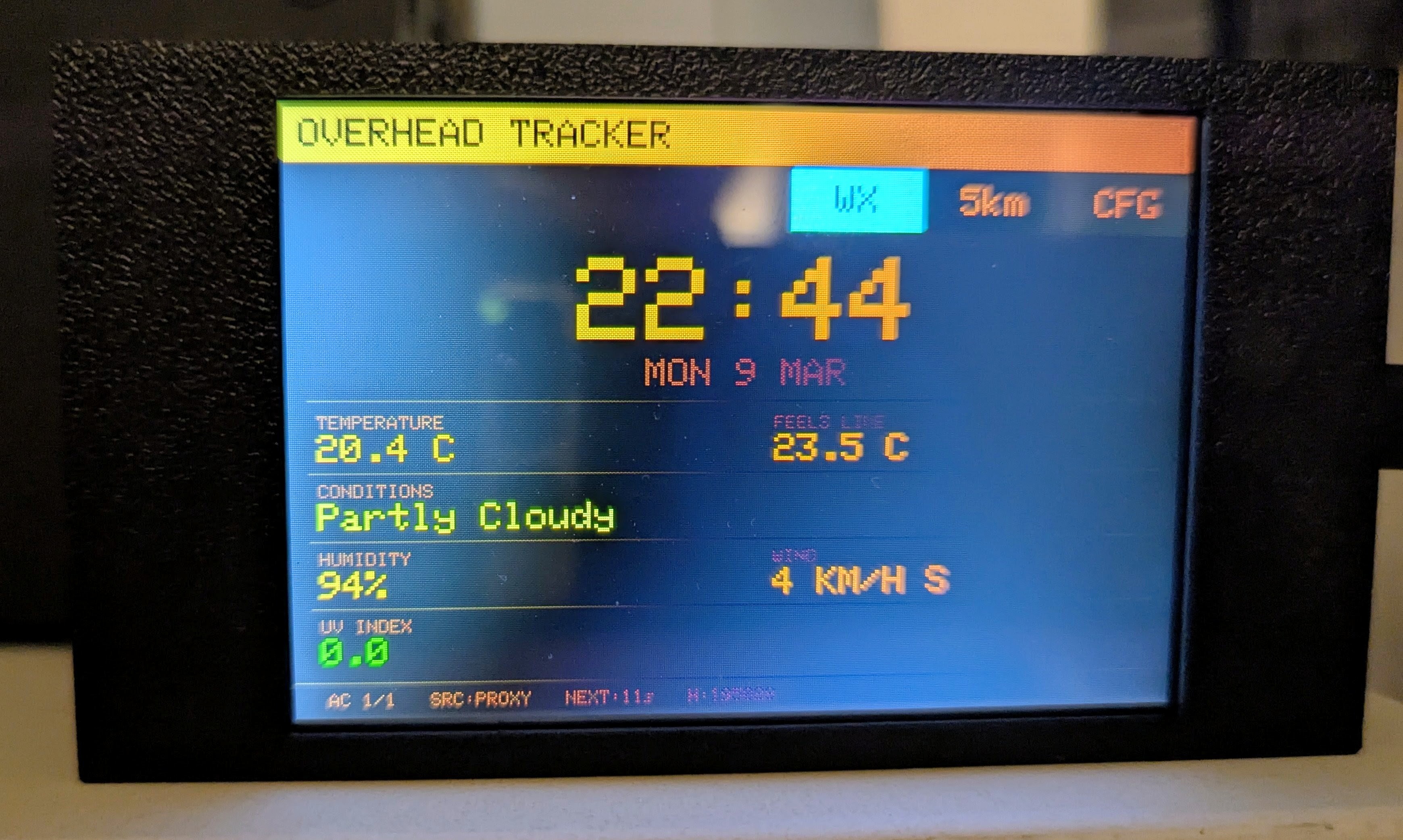
<p><img src="/blog/assets/images/overhead-tracker-2.jpg" alt="Weather screen: 20.4C, partly cloudy, 94% humidity — Monday 9 March" loading="lazy" /></p>

<p>The weather screen pulls local conditions from Open-Meteo through the proxy — temperature, humidity, wind speed and direction. When there are no planes overhead, there’s still something useful on the display.</p>

<h3 id="foxtrot--the-43-display">Foxtrot — the 4.3” display</h3>

<p>The second-generation display uses a Waveshare ESP32-S3-Touch-LCD-4.3B — an 800x480 IPS screen with capacitive touch and 8 MB of PSRAM. The larger screen fits a four-column dashboard (phase, altitude + vertical rate, speed, distance) alongside the flight card, and the capacitive touch is a big upgrade over the resistive panel on Echo. I wrote a <a href="/blog/2026/03/19/foxtrot.html">dedicated post about building Foxtrot</a> — it turned out to be a much more interesting hardware journey than I expected.</p>

<p><img src="/blog/assets/images/PXL_20260329_075358957.jpg" alt="Foxtrot on a workbench showing NCA159, a heavy B747-8 freighter in takeoff phase at 850 ft" loading="lazy" /></p>

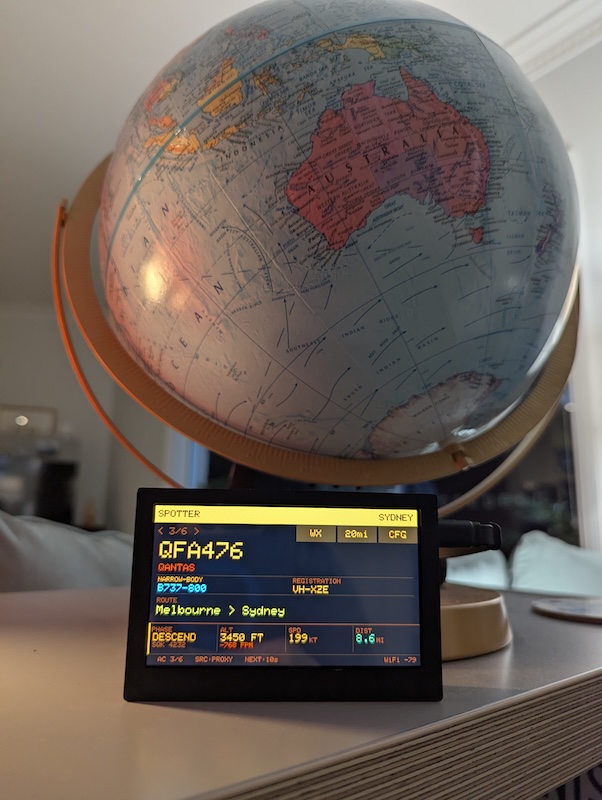
<p><img src="/blog/assets/images/PXL_20260329_080202053.jpg" alt="Foxtrot tracking QFA476, a Qantas B737-800 from Melbourne to Sydney, displayed in front of a globe" loading="lazy" /></p>

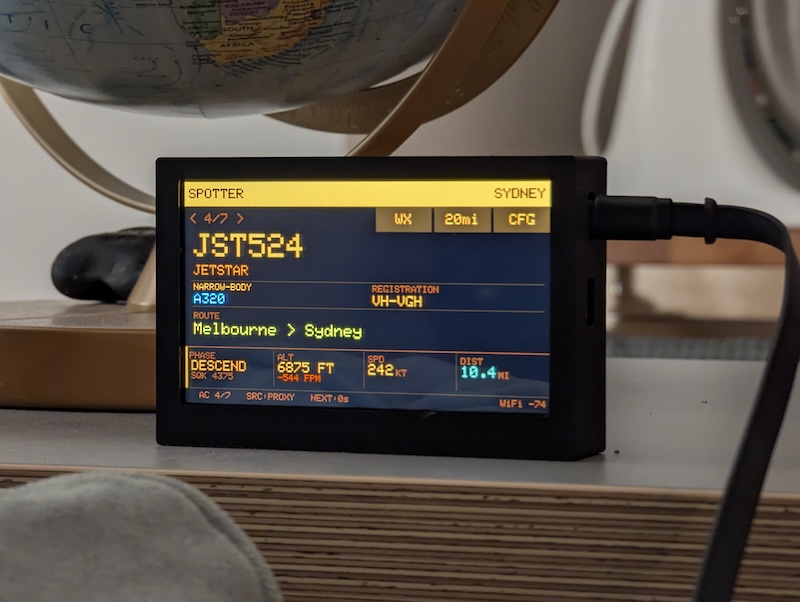
<p><img src="/blog/assets/images/PXL_20260329_081042942.jpg" alt="Foxtrot showing JST524, a Jetstar A320 descending from Melbourne to Sydney at 5,875 ft" loading="lazy" /></p>

<p>Emergency squawk codes get special treatment on both displays: 7700 (MAYDAY), 7600 (NORDO), and 7500 (HIJACK) trigger a flashing red banner across the screen. The layout compacts automatically to fit the alert without clipping the flight data.</p>

<h2 id="the-proxy-server">The proxy server</h2>

<p>The proxy started on a Raspberry Pi 3B+ with PM2 and a Cloudflare Tunnel, but I migrated it to Railway. No more undervoltage issues, no more SD card corruption scares, and deploys are a single command. It runs at <code class="language-plaintext highlighter-rouge">api.overheadtracker.com</code> with rate limiting (100 requests/min per IP) and a concurrency semaphore capping upstream API calls at 20 simultaneous requests.</p>

<p>The caching strategy uses coordinate bucketing — nearby clients within the same geographic bucket share cached responses, so ten devices in the same house don’t trigger ten upstream fetches. Flight data is cached for 15 seconds, routes for 30 minutes, weather for 10 minutes. APIs that fail get a 60-second cooldown before they’re retried, and the system rotates through APIs round-robin to spread load.</p>

<h2 id="recent-additions">Recent additions</h2>

<p>Since the initial build, the project has grown a few operational features:</p>

<p><strong>Route discovery tracking.</strong> The proxy tracks every unique route it sees in a <code class="language-plaintext highlighter-rouge">known-routes.json</code> file (capped at 20,000 entries). At 21:00 AEST each night, it sends a discovery email via the Resend API listing any new routes spotted that day. A daily backfill service runs at 02:00 AEST, enriching any flights from the previous day that were missing route data.</p>

<p><strong>Device heartbeat.</strong> Both Echo and Foxtrot now POST a heartbeat to the proxy every 60 seconds, reporting firmware version, free heap memory, WiFi RSSI, and uptime. The proxy stores the latest heartbeat for each device and exposes it on the status dashboard.</p>

<p><strong>Pi display server status page.</strong> The Pi display gained a third auto-rotating page that shows server system stats alongside health cards for each connected device, pulling from the heartbeat data.</p>

<p><strong>Interactive architecture diagram.</strong> An <code class="language-plaintext highlighter-rouge">architecture.html</code> page built with Cytoscape.js visualises all 27 system components and their connections in a CRT amber aesthetic — draggable nodes, click-to-highlight, and tooltips on hover.</p>

<h2 id="try-it">Try it</h2>

<p><a href="https://overheadtracker.com">overheadtracker.com</a>, or clone the repo and open <code class="language-plaintext highlighter-rouge">index.html</code> directly. Everything is MIT licensed.</p>

<p>Hope you enjoy it!</p>]]></content><author><name>Max</name></author><category term="Aviation" /><category term="DIY" /><category term="ESP32" /><category term="Raspberry Pi" /><summary type="html"><![CDATA[I live underneath a flight path, and I’m always wondering what plane is flying overhead. I looked up online, and the only device that was well referenced was the flight wall. Unfortunately, can’t buy it in Australia.]]></summary></entry></feed>