This is a step-by-step guide for flashing the Overhead Tracker firmware onto a fresh Freenove ESP32 4-inch display. By the end, you’ll have a standalone device showing every aircraft flying over your location in real time.
What you need
- Freenove FNK0103S — an ESP32 dev board with a built-in 4” 480×320 ST7796 touchscreen. ~$25–30 on the Freenove store or Amazon. Everything is on one PCB, no wiring required.
- A USB-C data cable — not a charge-only cable. If the board doesn’t show up as a serial port, the cable is the problem.
- A Raspberry Pi (3B+ or newer, optional) — only needed if you want to run a local caching proxy. The firmware defaults to the public proxy at
api.overheadtracker.com, so a Pi is no longer required. - A computer with a terminal (macOS, Linux, or Windows with Git Bash / MSYS2).
Step 1: Install arduino-cli
The project uses arduino-cli and a build script — not the Arduino IDE GUI. Install it:
macOS (Homebrew):
brew install arduino-cli
Linux:
curl -fsSL https://raw.githubusercontent.com/arduino/arduino-cli/master/install.sh | sh
Windows (MSYS2 / Git Bash): Download the latest release from arduino.github.io/arduino-cli and add it to your PATH.
Then add ESP32 board support:
arduino-cli core update-index \
  --additional-urls https://raw.githubusercontent.com/espressif/arduino-esp32/gh-pages/package_esp32_index.json
arduino-cli core install esp32:esp32 \
  --additional-urls https://raw.githubusercontent.com/espressif/arduino-esp32/gh-pages/package_esp32_index.json
Step 2: Install required libraries
arduino-cli lib install "ArduinoJson"
arduino-cli lib install "LovyanGFX"
The SD and ArduinoOTA libraries are built into the ESP32 core, so no separate install is needed.
Step 3: Clone the repo
git clone https://github.com/greystoke1337/localized-air-traffic-tracker.git
cd localized-air-traffic-tracker/tracker_live_fnk0103s
Step 4: Create your secrets file
cp secrets.h.example secrets.h
Open secrets.h and set your default WiFi credentials:
#pragma once
#define WIFI_SSID_DEFAULT "your-wifi-ssid"
#define WIFI_PASS_DEFAULT "your-wifi-password"
These are fallback defaults baked into the firmware. You’ll also be able to configure WiFi through the on-device captive portal after flashing (more on that below).
Step 5: Configure the proxy address (optional)
The firmware defaults to the public proxy at api.overheadtracker.com, so you can skip this step if you don’t need a local proxy. If you want to use your own Raspberry Pi proxy, open tracker_live_fnk0103s.ino and find the PROXY_HOST definition:
#define PROXY_HOST "192.168.1.100" // your Pi's IP (default: api.overheadtracker.com)
If the proxy is unreachable, the tracker falls back to querying the ADS-B API directly — it’ll still work, just with slightly less reliability under heavy use.
Step 6: Flash the firmware
Plug in your Freenove board via USB-C and run:
./build.sh
That’s it. The build script compiles the firmware, auto-detects your board’s USB port, and uploads. You should see the boot sequence animation on the display within about 30 seconds.
Other useful build commands:
| Command | What it does |
|---|---|
./build.sh compile |
Compile only, don’t upload |
./build.sh upload |
Upload the last compiled build |
./build.sh monitor |
Open serial monitor (115200 baud) |
./build.sh ota |
Flash over WiFi to overhead-tracker.local |
./build.sh safe |
Run tests + compile with strict warnings |
If upload fails with “No serial data received”, hold the BOOT button on the board while the script tries to connect, then release once you see “Connecting…” in the terminal.
Step 7: Connect to WiFi
On first boot — or if no saved WiFi config is found — the tracker launches a captive portal:
- The display shows:
CONNECT TO WI-FI: OVERHEAD-SETUP - On your phone or laptop, join the WiFi network called OVERHEAD-SETUP (open, no password)
- A setup page should open automatically. If it doesn’t, navigate to
192.168.4.1in your browser - Fill in three fields:
- Wi-Fi Network — your home WiFi SSID
- Wi-Fi Password — your WiFi password
- Location — a place name like
"Russell Lea, Sydney Airport"or"Brooklyn, New York"
- Hit save. The device reboots, connects to your WiFi, and geocodes the location name into coordinates using OpenStreetMap
The credentials and location are stored in the ESP32’s non-volatile storage (NVS), so they survive reboots and power cycles. You never need to recompile to change WiFi networks.
Re-entering setup mode
If you move the device to a new network or need to change the location, double-tap the CFG button on the bottom navigation bar (within 3 seconds). This clears the saved config and reboots into the captive portal.
If WiFi connection fails
If the device can’t connect after ~20 seconds, it shows a failure screen with two touch buttons:
- RECONFIGURE — clears saved WiFi and launches the captive portal again
- RETRY — reboots and tries the saved credentials one more time
Step 8: Set up a local Pi proxy (optional)
The device works out of the box with the public proxy at api.overheadtracker.com. If you’d prefer to run your own local proxy — for lower latency on your LAN or to avoid depending on the public server — you can set one up on a Raspberry Pi. The proxy is a lightweight Node.js server that caches ADS-B API responses, preventing rate limits when the device polls every 15 seconds.
Full setup instructions are in PI_PROXY_SETUP.md in the repo. The short version:
- Install Node.js on your Pi
- Copy the proxy files over
- Run
npm install && npm start - The proxy listens on port 3000
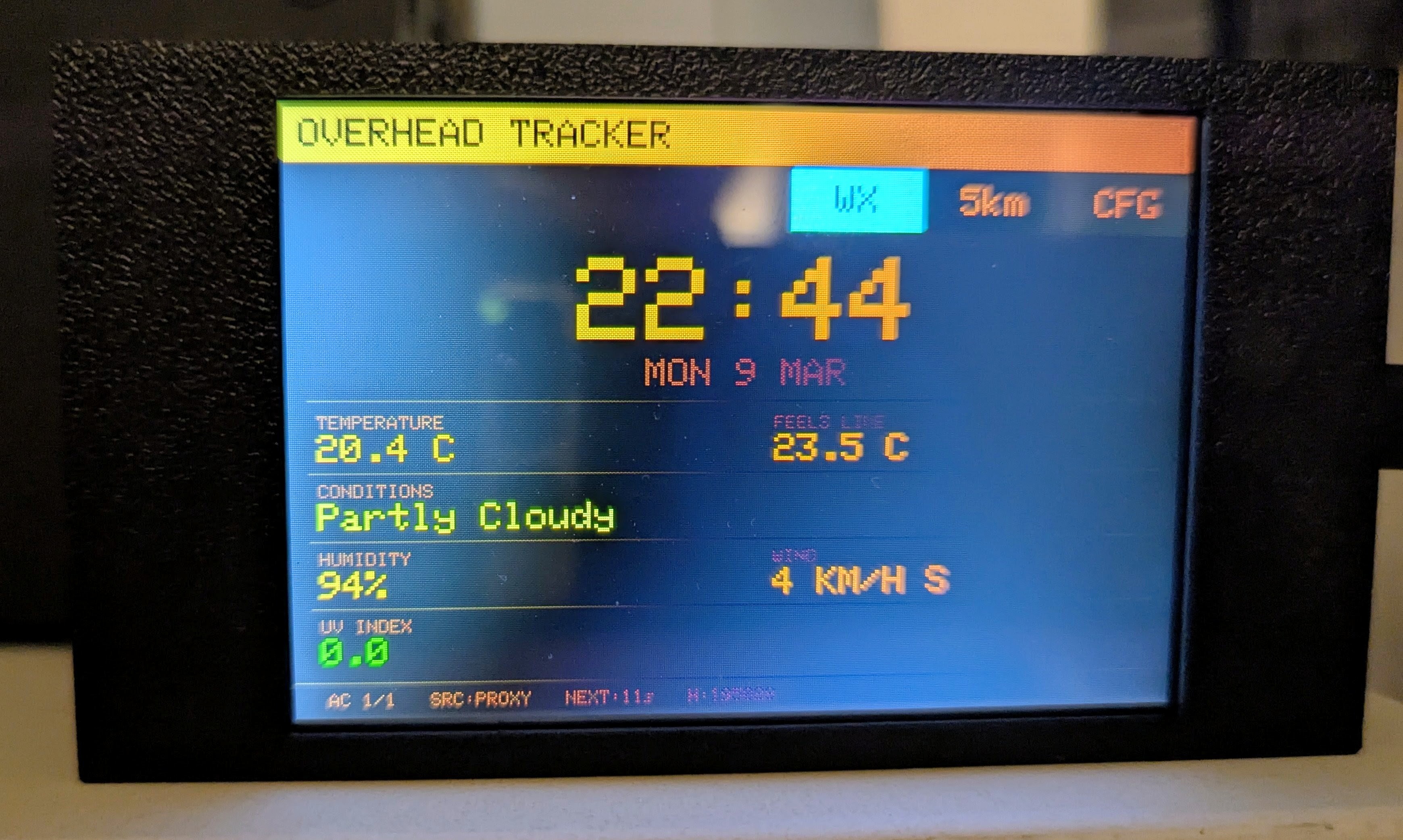
The proxy also serves weather data from Open-Meteo, which powers the weather screen on the device (tap WX on the nav bar).
What you should see
Once connected, the tracker cycles through nearby flights every 8 seconds. Each flight card shows:
- Callsign and airline name (color-coded for ~46 airlines)
- Aircraft type and registration
- Route — departure and arrival airports
- Dashboard — flight phase, altitude, speed, and distance from your location
Tap the GEO button to cycle the geofence radius between 5 km, 10 km, and 20 km. The device tracks up to 20 flights simultaneously and refreshes data every 15 seconds.
Troubleshooting
Board not detected. Try a different USB-C cable. Charge-only cables are extremely common and won’t work. On Windows, you may need the CP210x or CH340 USB driver.
White/blank screen after flash. The display driver config in lgfx_config.h should match the Freenove FNK0103S out of the box. If you’re using a different board, the pin assignments will need to change.
Captive portal doesn’t appear. Make sure you’re connected to the OVERHEAD-SETUP network. Try navigating to 192.168.4.1 manually. Some phones aggressively disconnect from networks without internet — disable auto-switch temporarily.
“No flights” showing. Check your geofence radius — 5 km is tight. Try 20 km first. Also verify your location was geocoded correctly by checking the header bar on the display. If the proxy isn’t reachable, the device falls back to direct API queries — watch the serial monitor (./build.sh monitor) for connection errors.
Crashes or reboots. Open the serial monitor to see error output. The device has a 30-second hardware watchdog, so if a network request hangs, it will restart automatically. Make sure PSRAM is enabled in the board configuration (the build script handles this).
OTA updates
After the initial USB flash, you can push firmware updates over WiFi:
./build.sh ota
This uploads to overhead-tracker.local via mDNS. The display shows a green progress bar during the update. Your device needs to be on the same network as your computer.
3D-printed enclosure
The repo includes STL and STEP files in the tracker_live_fnk0103s/enclosure/ directory for a snap-fit case with a display stand. Print at 0.2mm layer height, no supports needed for the case body.